The following outlines the procedures for creating and managing detection and whitelist rules for the Email Security Module:
On the Hoplon Email Security Module, select the Active Rules tab:
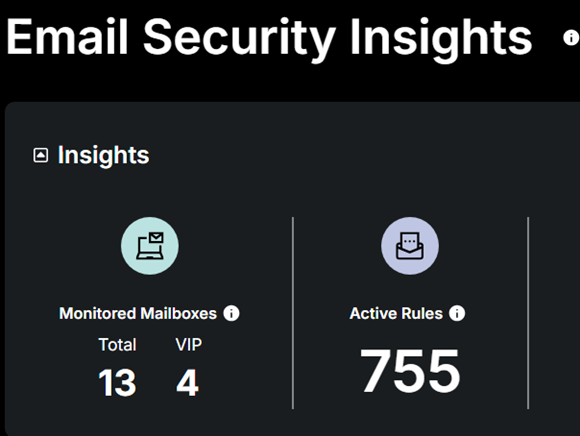
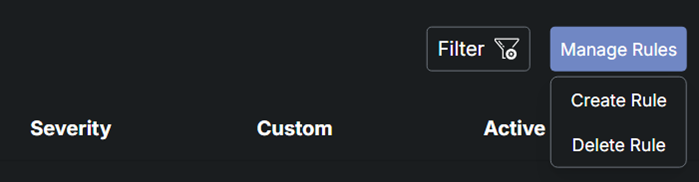
You will be directed to the Whitelist Rules page. Click the Manage Rules option to create a rule:
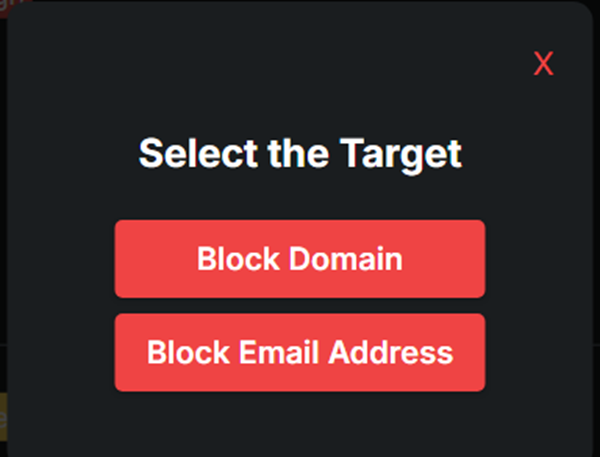
A prompt will be provided asking to Select the Target; click on the Block Domain tab:
Then you can choose the severity of the rule domain created based on your preference, from Critical to Low:
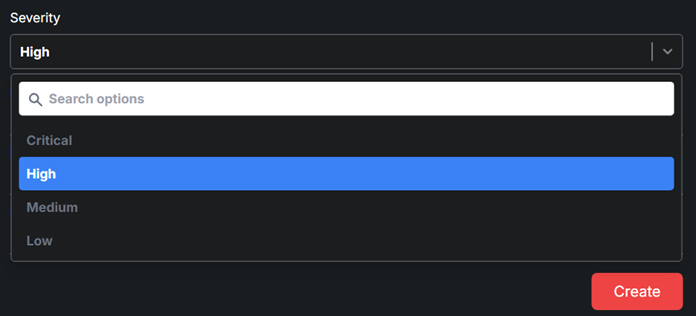
After filling in the severity form, you can then select Create to establish the detection rule for the relevant domain:
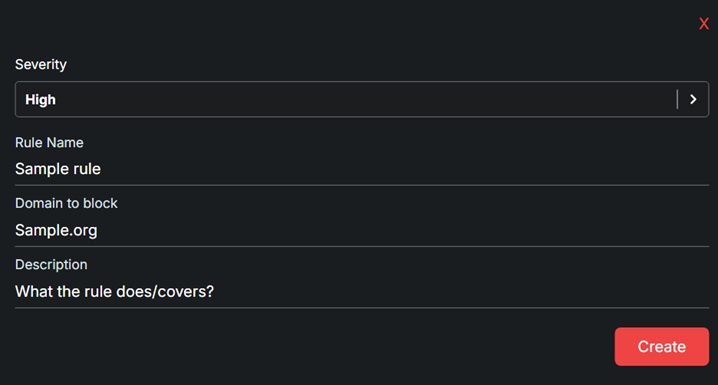
The detection rule is now successfully created:
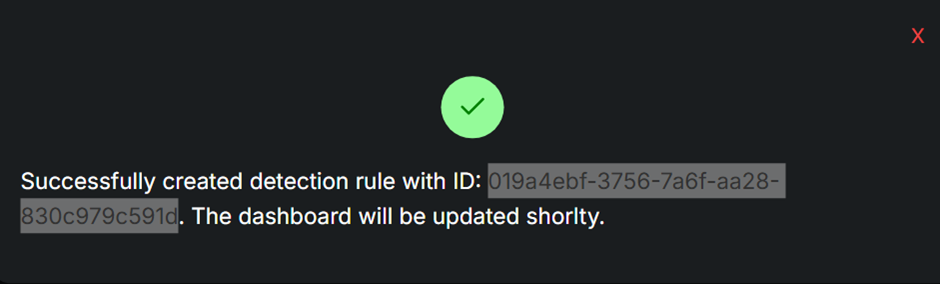
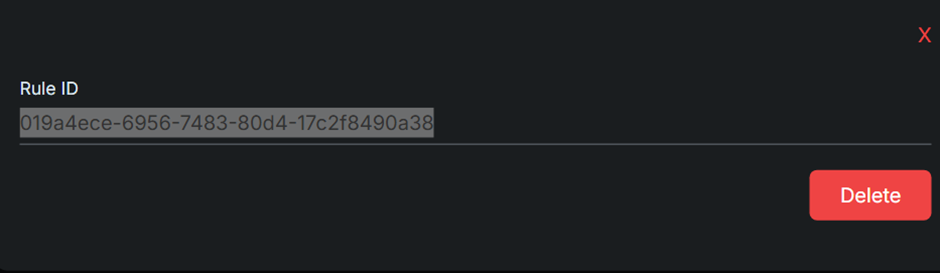
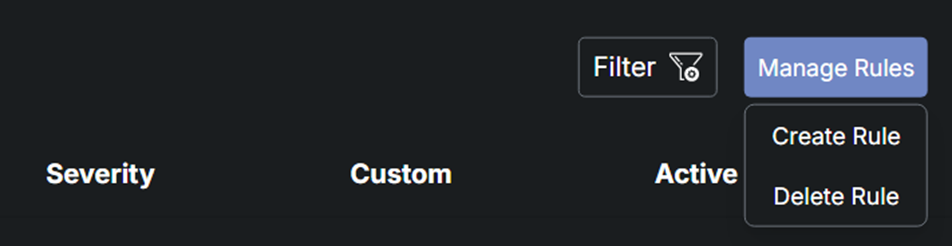
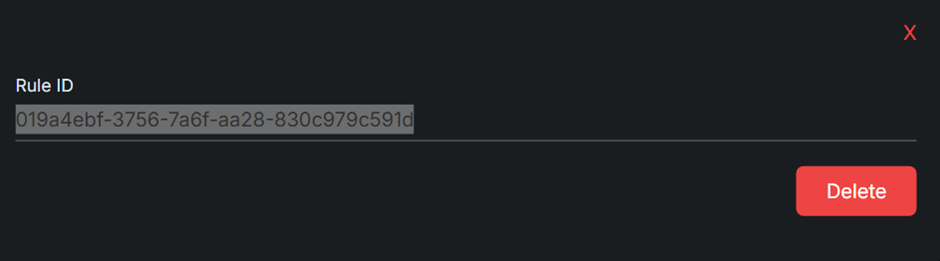
You can manage the same rule by copying the rule ID and then clicking on 'Delete Rule' if you no longer need it and wish to discard it as shown below:
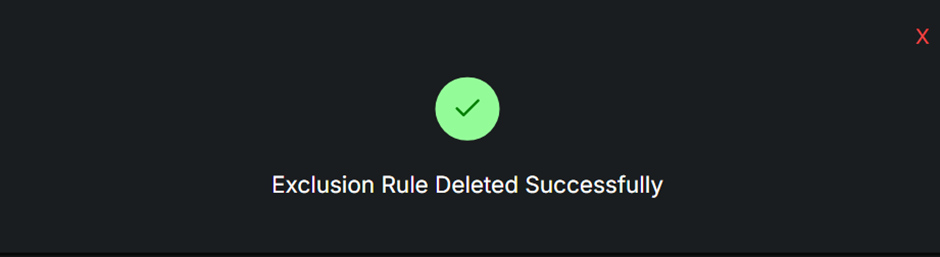
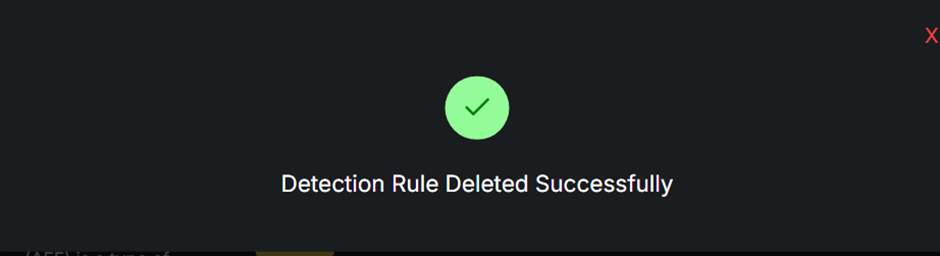
Now the Detection Rule created is successfully removed:
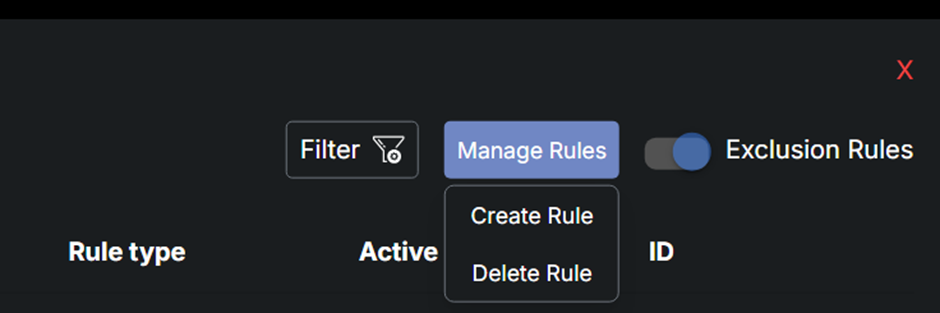
The same process applies if you want to turn the Exclusion Rules toggle on to exclude rules:
The next step is to Select the Target by clicking on Allow Domain:
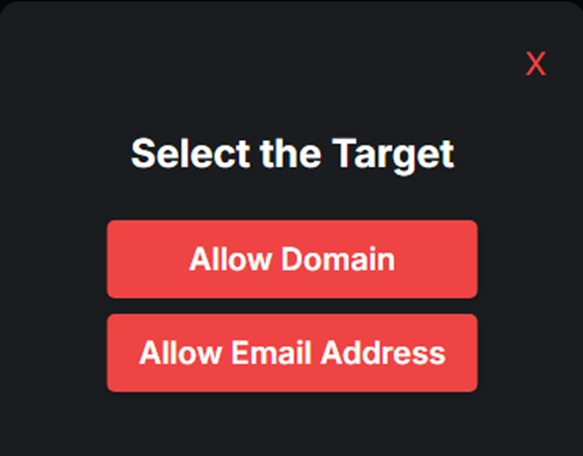
After completing the exclusion form, click 'Create' to make the rule's exclusion active:

To delete the same exclusion rule created for the relevant domain, copy the exclusion rule ID onto the Delete option:

The exclusion rule will then be removed as demonstrated below: